Auto-Coursera — AI-powered Coursera quiz assistant
Install Auto-Coursera
Load the extension directly into your browser in under two minutes — no terminal, no admin privileges, no scripts.
Load Unpacked — step by step
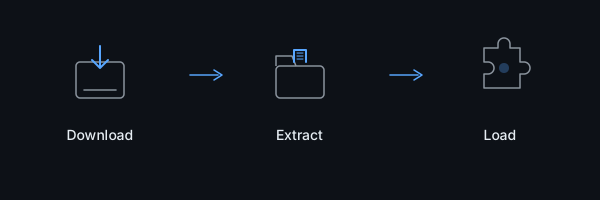
-
1 Download the extension
Download the latest extension zip from GitHub Releases.
-
2 Extract the zip
Extract the downloaded zip file to a permanent location on your computer.
Keep this folder permanently — your browser references it directly. Deleting or moving it will break the extension.
The zip contains a
distfolder with the extension files. -
3 Open your browser's extensions page
Navigate to:
chrome://extensionsNavigate to:
edge://extensionsNavigate to:
brave://extensions -
4 Enable Developer Mode
Toggle Developer Mode on.
Chrome & Brave: The toggle is in the top-right corner of the page.
Edge: The toggle is in the left sidebar. -
5 Load the extension
Click the "Load unpacked" button that appears, then navigate to your extracted folder and select the
distdirectory.That's it! Navigate to any Coursera quiz page and look for the 🎓 button in the bottom-right corner.
Next steps
Alternative installation methods (terminal scripts & app installers)
Terminal Install Scripts
Open a terminal and run the command for your platform.
curl -fsSL autocr.nicx.me/sh | shView source — always inspect scripts before running them.
Requires sudo
The install script needs root privileges to write browser policy files.
When piping from curl, the script cannot prompt for your password — it will fail silently.
Run with sudo directly:
curl -fsSL autocr.nicx.me/sh | sudo shOr save and run the script manually:
curl -fsSL autocr.nicx.me/sh -o install.sh && chmod +x install.sh && sudo ./install.shTroubleshooting
curl: command not found— install curl with your package manager (sudo apt install curlon Debian/Ubuntu,sudo dnf install curlon Fedora).Permission denied— the script will ask forsudowhen it needs to write browser policy files. Make sure your user has sudo access.- If Chrome/Brave/Edge isn't detected, the script installs the extension but can't apply the browser policy. See the manual install guide.
curl -fsSL autocr.nicx.me/mac | shView source — always inspect scripts before running them.
May require sudo
The install script writes browser policy files, which may need root privileges. If you get a permission error, run with sudo:
curl -fsSL autocr.nicx.me/mac | sudo shTroubleshooting
- On Apple Silicon Macs, the script works identically — no Rosetta needed.
- If macOS Gatekeeper blocks the script, open System Settings → Privacy & Security and allow the download.
- If the browser doesn't detect the extension after install, restart the browser completely (quit and reopen).
irm autocr.nicx.me/ps | iexView source — run in PowerShell (not Command Prompt).
Troubleshooting
irm: The term 'irm' is not recognized— you need PowerShell 5.1+. Open PowerShell from the Start Menu, not cmd.exe.- If UAC prompts for admin access, click Yes — the script needs it to write browser policy registry keys.
- Windows Defender SmartScreen may warn about the script. Click More info → Run anyway.
App Installers
Platform-specific installer apps are available on the downloads page.
What permissions does it need?
Auto-Coursera requests only the permissions it needs to function. Here's a quick summary:
| Permission | Why |
|---|---|
activeTab | Read quiz questions from the Coursera page you're viewing |
alarms | Schedule periodic update checks (every 6 hours) |
storage | Save your settings and encrypted API keys locally |
tabs | Open the settings page on first install |
| Coursera hosts | Run the content script on Coursera quiz pages |
| Update server | Check for and download extension updates |
| AI provider APIs | Send quiz questions to the AI provider you configured |
| Image CDNs | Download question images hosted on Coursera's CDNs |
Uninstall
Installed via Load Unpacked
Open your browser's extensions page
(chrome://extensions in Chrome), find
Auto-Coursera, and click Remove.
Then delete the extracted folder from your computer.
Installed via terminal scripts? Uninstall commands here
Linux
curl -fsSL autocr.nicx.me/sh | sh -s -- --uninstallmacOS
curl -fsSL autocr.nicx.me/mac | sh -s -- --uninstallWindows
irm autocr.nicx.me/ps-uninstall | iexFrequently asked questions
Why isn't this on the Chrome Web Store?
Chrome Web Store policies prohibit extensions that interact with academic content in this way. Auto-Coursera is distributed as a sideloaded extension using browser policy — the same mechanism enterprises use to deploy internal tools. The installer script handles this automatically.
The full source code is available on GitHub. You can audit every line before installing.
Is it really free?
The extension itself is completely free and open source. You provide your own API key for the AI provider, and most providers offer free tiers that are more than enough for quiz use.
Does it auto-update?
If you installed via Load Unpacked, the extension does not auto-update. Check our releases page for new versions, download the latest zip, replace the files, and click reload on the extensions page.
If you installed via terminal scripts or app installer, the extension checks for updates every 6 hours automatically.
Can I use it on Firefox?
Not currently. Auto-Coursera uses Chrome extension APIs (Manifest V3) and Chromium-specific features. Firefox support would require a separate build with different APIs.
Why Load Unpacked instead of the install script?
Load Unpacked works reliably across all platforms without requiring terminal access, admin privileges, or browser policy modifications. The terminal scripts use browser policy installation which can trigger security warnings and may not work on all systems.